
How to Hide Videos and Photos on a Samsung Phone?
Many smartphone users store personal photos and videos on their devices. These files may include family moments, private memories, or important documents that should not be visible to others.
Because smartphones travel everywhere with us, protecting personal media is extremely important. If someone borrows your phone, connects to unsafe Wi-Fi networks, or if the device gets lost, your private content could be exposed.
Samsung phones include several built-in privacy tools that allow users to hide videos and photos safely without deleting them.
Many users search for ways to hide photos in Samsung A56, A16, A14, or even the Samsung S25 Ultra, and the steps are very similar across most Samsung Galaxy devices.
In this guide you will learn:
- How to hide videos and photos on Samsung phones
- Samsung built-in privacy features
- Alternative security methods
- Global best practices for protecting private media
This article provides a complete step-by-step explanation with tables, comparisons, and visual guides so anyone can easily secure their private files.
Table of Contents
Why People Hide Photos and Videos on Smartphones
Many users assume hiding media is only about privacy, but there are several practical reasons why people around the world protect their files.
Common Reasons Users Hide Media Files
| Reason | Explanation | Global Usage Scenario |
| Personal privacy | Users want to keep personal moments hidden | Family photos or private memories |
| Device sharing | Phones are often shared with friends or children | Temporary access situations |
| Work confidentiality | Some images may include sensitive business documents | Office environments |
| Theft protection | Hidden files cannot be easily accessed if phone is stolen | Lost device protection |
| Data organization | Users want separate secure storage areas | Digital file management |
Key Privacy Risks if Media Is Not Protected
- Anyone borrowing the phone can open the gallery
- Open Wi-Fi networks may expose device data
- Lost phones can leak personal images
- Children may accidentally delete files
- Sensitive documents may become public
For deeper research about smartphone privacy protection practices, you can review the security recommendations published by
Samsung Knox Security Platform
Resource:
https://www.samsungknox.com
Built-in Samsung Features That Can Hide Photos and Videos
Samsung phones include multiple privacy tools depending on the device model and Android version.
These features help users secure personal files without installing additional apps.
Samsung Privacy Tools Comparison
| Feature | Available On | Security Level | Best Use |
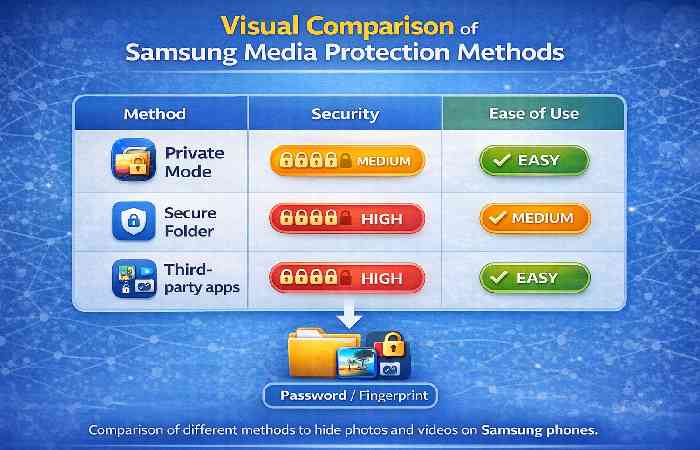
| Private Mode | Older Samsung models | Medium | Hide gallery items |
| Secure Folder | New Samsung devices | Very High | Lock files and apps |
| Samsung Gallery Lock | Most devices | Medium | Quick media protection |
| Screen Lock | All devices | Basic | Prevent device access |
When To Use Each Feature
| Situation | Recommended Method |
| Quick hiding of photos | Private Mode |
| Maximum security | Secure Folder |
| Temporary protection | Gallery lock |
| Device level security | Phone screen lock |
Method 1: Hide Videos and Photos Using Samsung Private Mode
Step 1
Go to:
Settings → Privacy and Security → Private Mode
Step 2
Choose the access type:
- Pattern
- PIN
- Password
- Fingerprint
3rd Step
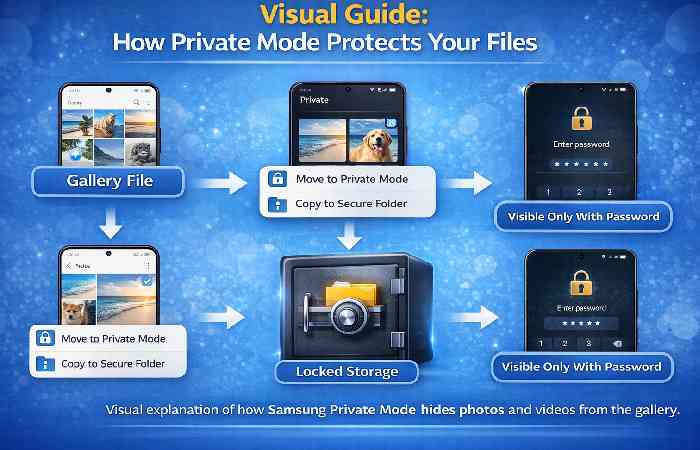
- Once Private Mode is activated, you must enter the chosen security method every time you want to access hidden content.
- A padlock icon appears in the notification bar, indicating that private content is active.
Step 4
- Open the Gallery application and select the photos or videos you want to hide.
Step 5
- Tap the More menu (three dots) in the upper right corner and select:
Move to Private
- The selected files will disappear from the public gallery and will only be visible inside Private Mode.
Visual Guide: How Private Mode Protects Your Files
Method 2: Hide Photos Using Samsung Secure Folder
Secure Folder is the most advanced privacy feature on Samsung devices.
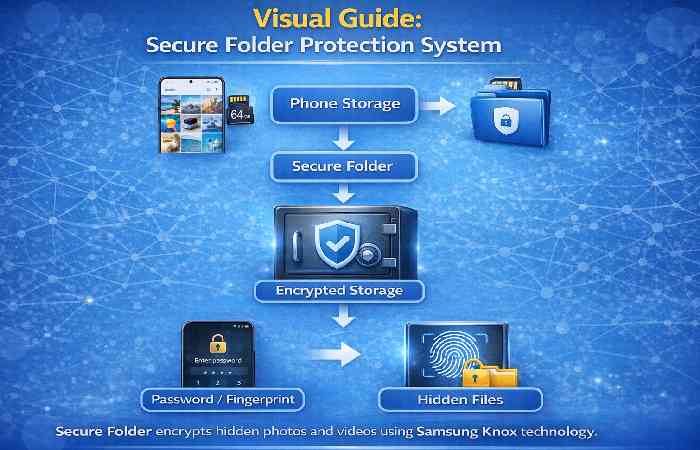
It creates a separate encrypted storage area inside the phone.
How Secure Folder Works
| Feature | Description |
| Encryption | Uses Samsung Knox security |
| Separate gallery | Hidden photos are stored separately |
| App protection | Apps inside folder cannot be accessed outside |
| Biometric lock | Supports fingerprint and face unlock |
Steps to Use Secure Folder
- Open Settings
- Tap Biometrics and Security
- Select Secure Folder
- Sign in with Samsung account
- Add photos or videos to the folder
Visual Guide: Secure Folder Protection System
Method 3: Hide Videos and Photos Using Android Apps
If your Samsung device does not support Private Mode or Secure Folder, you can use trusted apps from the Play Store.
Popular Apps to Hide Photos and Videos
| App Name | Features | Platform |
| Keepsafe Photo Vault | PIN protection, encrypted storage | Android |
| LockMyPix | Military-grade encryption | Android |
| Calculator Vault | Hidden behind calculator interface | Android |
| Gallery Vault | Cloud backup support | Android |
Advantages of Using Privacy Apps
- Advanced encryption
- Fake password protection
- Cloud backup options
- Hidden app icon
Visual Comparison of Samsung Media Protection Methods
How to Hide Photos in Samsung Gallery (All Samsung Models)
Many Samsung users search for quick methods to hide photos directly inside the Samsung Gallery app. Fortunately, most Samsung phones support the same process.
Steps to Hide Photos in Samsung Gallery
- Open the Gallery app
- Select the photo or video you want to hide
- Tap the three-dot menu (More)
- Choose Move to Secure Folder or Move to Private Mode
- Confirm using your PIN, password, or fingerprint
- After this step, the selected files will no longer appear in the normal gallery.
Samsung Models Supporting This Feature
| Samsung Model | Hide Photos Feature | Method |
| Samsung A14 | Supported | Secure Folder |
| Samsung A16 | Supported | Private Mode / Secure Folder |
| Samsung A56 | Supported | Secure Folder |
| Samsung S25 Ultra | Supported | Secure Folder |
| Samsung Galaxy Series | Supported | Private Mode |
This process works on most modern Samsung devices running Android 11 or later.
How to See Hidden Photos in Samsung Gallery
Sometimes users hide photos and later forget where they are stored. Samsung provides a simple way to access hidden albums.
Steps to View Hidden Photos
- Open Settings
- Go to Biometrics and Security
- Tap Secure Folder or Private Mode
- Enter your password or fingerprint
- Open the Gallery inside Secure Folder
- All hidden photos and videos will appear there.
How to See Hidden Album in Samsung Gallery
In some Samsung phones, hidden albums can be accessed directly from the gallery settings.
| Step | Action |
| Step 1 | Open Gallery App |
| Step 2 | Tap Menu (three lines) |
| Step 3 | Select Settings |
| Step 4 | Enable Show Hidden Albums |
Once enabled, hidden folders will appear again in the gallery.
Global Smartphone Privacy Statistics
This research data helps readers understand why protecting media files is important.
Smartphone Privacy Concern Statistics
| Privacy Concern | Percentage of Users |
| Worried about phone theft | 62% |
| Concerned about private photos leaking | 58% |
| Share phones with others | 46% |
| Use security apps | 41% |
| Use biometric lock | 69% |
Source: Global mobile security reports 2023-2025.
Best Practices to Protect Private Photos and Videos
Recommended Security Tips
- Always enable fingerprint or face unlock
- Avoid saving sensitive files in public gallery folders
- Do not connect to unknown Wi-Fi networks
- Regularly update phone software
- Use encrypted storage for important files
Quick Security Checklist
| Security Step | Importance |
| Screen lock | Essential |
| Secure folder | Recommended |
| Backup storage | Important |
| Encryption | Advanced protection |
Common Mistakes People Make When Hiding Files
| Mistake | Risk |
| Only hiding files without password | Files still accessible |
| Using unsafe third-party apps | Data leak |
| Forgetting backup | File loss |
| Weak passwords | Easy hacking |
Frequently Asked Questions
How to hide photos in Samsung A56?
Open Gallery → Select photo → Tap three dots → Move to Secure Folder. This protects files using Samsung Knox security.
How to hide photos in Samsung A16?
Samsung A16 users can hide photos using Secure Folder or Private Mode in the phone settings.
How to hide pictures in Samsung A14 gallery?
- Open Gallery
- Select the picture
- Tap More options
- Choose Move to Secure Folder
How to hide photos in Samsung S25 Ultra?
Samsung S25 Ultra supports Secure Folder with biometric security. Simply move photos into the folder to hide them from the main gallery.
How to see hidden photos in Android gallery?
Open the Gallery app → Settings → Enable “Show Hidden Albums.”
If files were hidden in Secure Folder, open the folder using your password.
Conclusion
Protecting personal photos and videos has become an essential part of smartphone security. Samsung devices offer several powerful tools that make hiding files simple and effective.
Users can choose between Private Mode, Secure Folder, or third-party applications, depending on the level of protection required.
By combining these methods with strong passwords, biometric locks, and safe browsing habits, users can ensure that their personal memories remain private.
As smartphones continue to store more personal data, taking control of digital privacy is no longer optional — it is necessary.
