
Why Your PC Freezes and How to Fix It Fast

When a PC freezes, it is rarely random. Whether you are facing computer freezing randomly in Windows 10 or experiencing a sudden system crash during gaming, the root cause usually falls into hardware, software, or environmental factors.
Globally, the most common causes include:
- Faulty RAM
- Overheating PC components
- Power supply issues
- Malware or corrupted system files
- Driver or hardware conflicts
Understanding why a PC freezes helps prevent data loss and repeated crashes.
There are many reasons why a computer or laptop can stop working correctly and PC freezes.
Table of Contents
Most Common Reasons a PC Freezes
| Cause | Frequency Globally | Severity | Ease of Fix |
| Faulty RAM | High | High | Medium |
| Overheating PC | Very High | High | Easy |
| Malware Infection | High | Medium–High | Easy |
| Power Supply Issues | Medium | High | Medium |
| Driver Conflicts | High | Medium | Easy |
| Corrupted Windows Files | Medium | Medium | Medium |
Some are impossible to solve, and others are more common and easy to solve.
In the latter group, faulty RAM modules, overheating from dirt, viruses, and a power supply with insufficient power can knock out our PC.
Internal Heat Zones in a PC
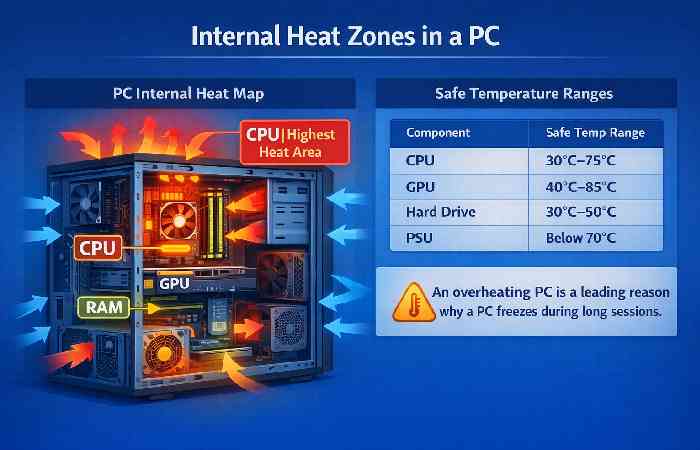
Recommended image content:
- CPU (Highest Heat Area)
- GPU
- Power Supply Unit
- RAM modules
- Airflow direction arrows
Safe Temperature Ranges
| Component | Safe Temp Range |
| CPU | 30°C–75°C |
| GPU | 40°C–85°C |
| Hard Drive | 30°C–50°C |
| PSU | Below 70°C |
An overheating PC is a leading reason why a PC freezes during long sessions.
We have all suffered the symptoms that something terrible is about to happen to our computer.
First, small “jerks” are observed, then something stops responding so that finally the application with which we are working freezes, a state that those who have suffered it assure.
Generally occurs at the least opportune moment, leaving us without the possibility of continuing working.
In the worst case, that part of what we were doing with the PC is lost forever.
The scene ends after a few minutes of agony when the dreaded BSOD, the blue screen of death, finally appears on the screen, which indicates that our PC has just suffered a rather severe crash.
Now it only remains to restart it and hope that the problem has disappeared without too many consequences.
What Happens Inside Your System During a Freeze
When a PC freezes, the operating system stops responding due to a failure in memory access, CPU overload, or hardware communication breakdown. In many cases, this leads to the blue screen of death (BSOD).
If your PC freezes repeatedly, it may indicate:
- Kernel-level driver corruption
- RAM memory read/write failure
- Thermal throttling
- Power instability
For official Windows troubleshooting steps, refer to:
🔗 https://support.microsoft.com/windows
🔗 https://www.memtest86.com/
The most common problems for a PC to hang and how to solve them
As we mentioned, there are many causes for a PC to crash, and currently, it becomes vital to know how and why they occur to be prepared and avoid or face them.
Many parts of a computer can fail, and here we will try to recognize and repair them.
RAM Faulty
This module is one of the important causes of trouble and a significant player in producing blue screens at system boot.
Fortunately, testing and troubleshooting RAM modules are straightforward, and should you run into problems, they are easy to replace.
There is nothing better than an application called Memtest86 + to check the proper functioning of a RAM module, which will study the memory banks in search of trouble caused.

If it finds errors, then it is essential to determine which module is producing them and how to fix the error.
To do this, we must remove the cover of the PC cabinet and remove the RAM modules, leaving only one of them, the one located in slot 1, in case there are more than one.
Next, we run Memtest86 +, and if it does not indicate an error, it means that this RAM module does not observe problems.
If we have more than one module, we repeat the procedure as many times as we have modules.
The performance and stability of RAMs are of vital importance so that a computer does not freeze. If the memory modules are wrong, we are likely to have a lot of problems.
Insufficient capacity power supply
Thanks to the fact that we can currently have high-performance PC components at a reasonable price, it is pretty likely that our PCs have very powerful CPUs, sound, or video cards installed.
It is also possible that you have made some touch of “Overclocking” to the processor since they come prepared for it.
Unfortunately, all power comes at a price, and it is the high amount of energy consumed by all those components.
Which can make your system unstable and freeze a computer a lot of times a day if we do not have a powerful power supply, like to power the whole PC efficiently.
To know precisely the total energy consumption of the PC, firstly, you should add the consumption of every element that compose it.
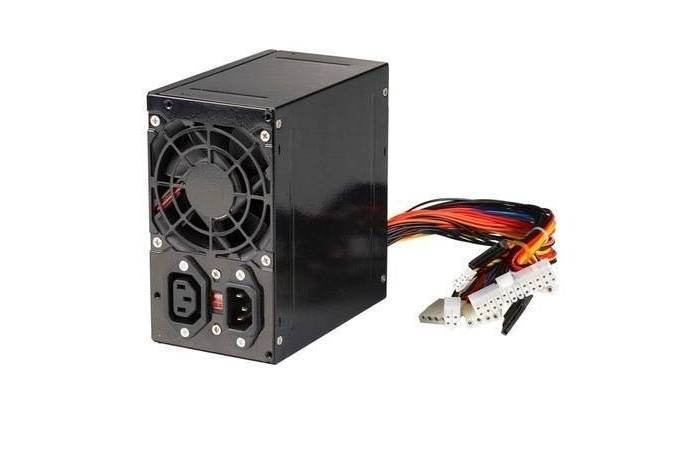
It’s not easy since we will have to resort to the manuals or the manufacturers’ websites.
But once this data recover, we can compare it with the power that the power supply of our computer is capable of delivering.
Let’s conclude that the power supply is not capable of supplying the necessary power. It’s a time to replace it with a higher capacity one since it can cause a PC to freeze and leave us without the possibility of finish what we were doing.
Generally, if we have a PC with components of good performance, but without exaggeration, a power supply with at least 600 Watts will be sufficient.
But if we have non-standard configurations such as two video cards connected by SLI or CrossFire, in addition to many other cards, this power will not be enough, having to acquire one of at least 800 Watts.
RAM Failure Symptoms & Fix Guide
| Symptom | Likely RAM Issue | Diagnostic Tool | Solution |
| Blue screen during boot | Memory corruption | MemTest86 | Replace faulty module |
| Random system crash | Faulty RAM sector | Windows Memory Diagnostic | Test sticks individually |
| PC freezes while gaming | Overloaded memory | Task Manager | Upgrade RAM |
| Frequent restarts | RAM timing issue | BIOS check | Adjust or replace |
Faulty RAM is one of the top causes when a PC freezes unexpectedly.
Heat-related problems – PC freezes
Inside a PC, whether laptop or desktop, large amounts of heat are generated by the components housed within the device. Even in those small Android tablets, this trouble causes.
If the heat inside the PC is not dissipating correctly, it can cause instability and cause accidents such as the PC freezing.
Although some of the modern equipment has inside a sequence of sensors it allows you to determine the temperature and turn off the equipment in case the permits limit exceed.
The truth is that before it happens, you should check a series of aspects related to fans and ventilation openings.
Firstly, you need to make clear in your mind that all the PC fans are working correctly. If any of them does not work or does it improperly, it is best to replace it.
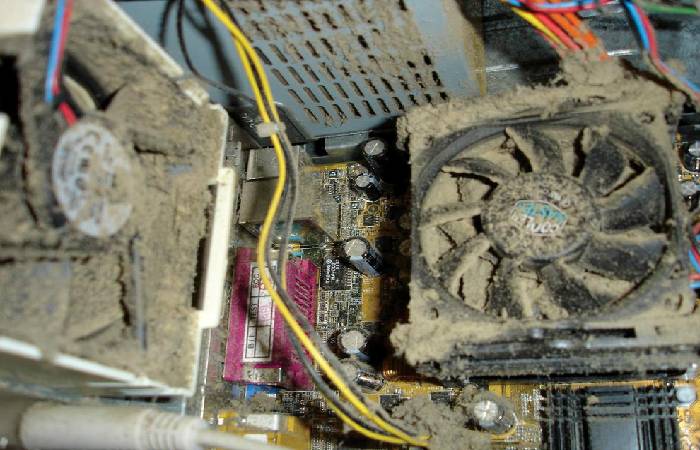
It is also necessary to check the vents and openings to verify that they do not obstruct elements that do not allow you to ventilate the equipment satisfactorily.
Another problem related to temperature occurs when we change a processor. A bad application of thermal paste between the heatsink and CPU can cause it to overheat and freeze the computer.
To repair or take it into account for future updates, we only have to remove the heat sink located on the processor.
Clean the two surfaces, the heat sink, and the processor, with a cotton swab, dipped in alcohol and placed a single drop of thermal paste.
The latter should consider since the heat dissipation is not adequate if too much or too little is applied.
Power Supply Wattage vs System Type
| System Type | Recommended Wattage | Risk if Underpowered |
| Basic Office PC | 400–500W | Random shutdown |
| Gaming PC | 600–750W | PC freezes under load |
| Dual GPU Setup | 800–1000W | System instability |
| Workstation | 750W+ | Performance drops |
If your PC freezes during heavy tasks, power supply issues may be responsible.
The usual suspects: Viruses and malware – PC freezes
Both viruses and malware are usually among the most common causes for a computer to freeze and produce crashes and blue screens.
Fortunately, getting rid of these nefarious tenants is pretty straightforward these days. We have to use a good antivirus that is up to date and carry out a deep analysis of our computer.

If the virus or malware has disabled the antivirus, which is possible.
We must restart the PC in safe mode by pressing the F8 key during startup before the Windows startup screen appears.
This will ensure that Windows does not load drivers or software that are not essential for its operation.
When Windows has started in safe mode, we do a full scan with our favorite antivirus.
Malware Types That Cause Computer Freezing
| Malware Type | Effect on System | Fix |
| Crypto Miner | High CPU usage | Deep antivirus scan |
| Trojan | System corruption | Safe Mode scan |
| Spyware | Memory overload | Anti-malware tool |
| Ransomware | System lock | Immediate isolation |
If your PC freezes during startup, malware removal should be part of troubleshooting.
Hardware conflicts – PC freezes
That a computer freezes and blue screens display can also result from conflicts between the hardware components of our PC.
One of the most common hardware conflict problems occurs when two devices try to use the same IRQ. Fortunately, in many of these cases, a solution is easy to find.
To do this, we open the Device Manager, where we will find the list of all the devices installed on the PC.

In the event that we see that a yellow triangle is shown on any of them, then it means that component has a problem, which can bring complications even to the hardware that depends on it, which will inevitably lead to the computer freezing.
Generally, updating or reinstalling the component driver and a system reboot ends the problem.
In the event that the problem persists and the component that fails is of the removable type, such as a storage unit, we can try to solve the problem by uninstalling it and reinstalling it.
Hardware Conflict Diagnosis Guide
| Symptom | Possible Conflict | Fix |
| Yellow triangle in Device Manager | Driver conflict | Update driver |
| Freeze after installing new hardware | IRQ conflict | Reinstall device |
| Windows 10 freezing | Outdated drivers | Use manufacturer updates |
| System crash on USB insert | USB driver error | Reinstall USB controller |
Hardware conflicts remain a common reason a PC freezes on Windows systems.
Step-by-Step Prevention Checklist
✔ Prevent a PC Freeze Before It Happens
- Clean internal dust every 3–6 months
- Update Windows and drivers regularly
- Use surge protection
- Monitor CPU temperature
- Run malware scans monthly
- Avoid excessive overclocking
These steps significantly reduce how often a PC freezes.
Conclusion
When a PC freezes, it is usually a signal—not a mystery. Whether caused by faulty RAM, overheating PC components, malware, or power supply issues, most freezing problems can be diagnosed and fixed with a structured approach.
Modern systems provide tools that help identify root causes quickly. By understanding hardware stability, maintaining airflow, and keeping drivers updated, users can prevent most computer freezing issues before they lead to serious system crashes.
If your PC freezes repeatedly, treat it as an early warning sign rather than a random event.
